
 CONVERGE Horizon
Monitor Job Output#
The file system File Manager provides advanced job monitoring tools to help you manage your cases efficiently. These tools are available only for jobs running on file systems.
CONVERGE starts writing output to the file system at the beginning of a simulation, so you can start looking at the results right away. Monitoring the simulation while it runs can help you identify and address potential issues in real time—for example, you might realize that a physical model is generating unexpected results because it is not configured correctly, or you might find that you need to tweak numerical settings to improve convergence. The tools described below can help you catch these issues early, saving you time and money.
Use these tools to preview your simulation results, while reserving more demanding data visualization and analysis tasks for a post-processing application such as CONVERGE Studio, Tecplot for CONVERGE, or ParaView.
View the Case Summary#
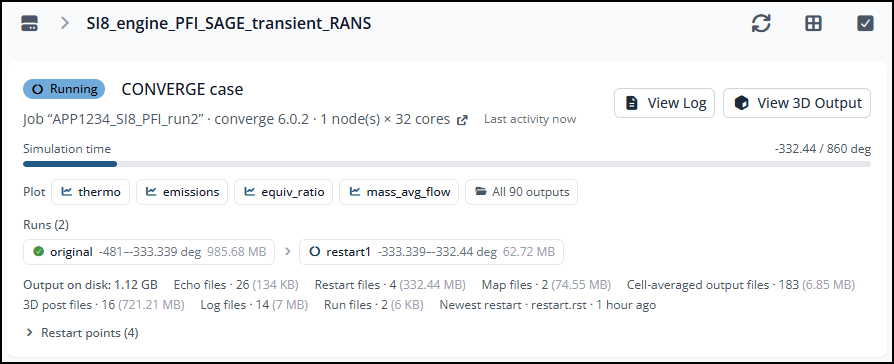
When you open the folder for a CONVERGE case, the File Manager displays a case summary with information about how the simulation is progressing. Look here first to see how far along the case is, if it needs to be restarted, which types of output files have been generated, and how many restart files have been written. Click View Log or View 3D Output to quickly access the log file or the 3D post files.
The case summary appears only in folders containing an inputs.in file.
Plot Cell-Averaged Data#
CONVERGE writes cell-averaged data to column-formatted ASCII files in outputs_*/stream<number>. To plot results from one of these files, click on the file name in the case summary (only a few files are listed there) or navigate to the output folder, select the file, and click Plot. Select one column to plot on the X axis (typically the simulation cycle number, crank angle, or time) and one or more columns to plot on the Y axis. You can also:
Toggle the Pause/Follow button to stop or start updating the plot with new data as the simulation progresses.
Click Open as Text or Download to view or download the raw data as a text file.
For restarted simulations, switch between This run and Full chain to plot results from the current run or plot the combined results from all runs.
For descriptions of the columns written to each *.out file, consult the CONVERGE Manual (available on the CONVERGE Hub; login required).
Explore Data in 3D Post Files#
CONVERGE writes binary-formatted 3D post files to outputs_*/output. Select any post file and click Explore to access options for analyzing and visualizing the variables written to the file. You can compute basic statistics, view the surface geometry and its boundaries, plot simulation variables over the surface, and visualize parcels (if Lagrangian parcel modeling is active).
Combine Output Across Runs#
Restarted simulations have a separate output folder for each run (outputs_original for the original run and outputs_restart<number> for subsequent runs). Each folder contains a set of *.out files with data written during that run. To generate a new set of *.out files combining the data from all runs, click Combine. This button is available only in folders containing multiple outputs_* folders.
The combined output will be written to a new outputs_combined folder. In the event that a restart overlaps with the preceding run (e.g., the restarted simulation began at 2.5 s and the preceding simulation ended at 2.55 s), the data from the more recent run will be written to the combined output files.