
 CONVERGE Horizon
Run a Job#
Before you can run a job, you must upload the input files to a file system or a space. The job will run in the data center where the input files are stored.
Create a Job#
In the CONVERGE Horizon web interface, you can create a job from the file system or space containing the input files.
Follow these steps if the input files are on a file system:
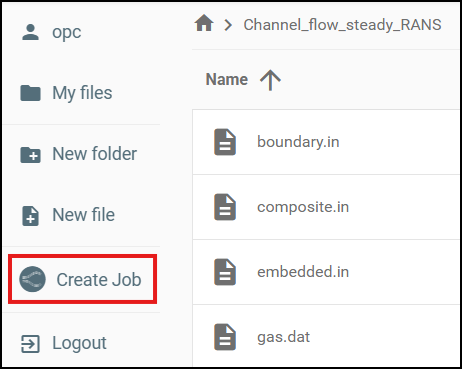
Open the File Manager and navigate to the directory for your case.
If you want to validate your input files before starting the case, click Check Inputs on the right to run the CONVERGE check_inputs utility for the version of CONVERGE you plan to run. If there are any errors, edit your input files to fix the errors.
Click Create Job and fill out the job options. If you need help selecting a node type, review our hardware recommendations.
When you are ready to submit the job, click Create Job.
Follow these steps if the input files are in a space:
Go to Spaces and click on the name of the space.
Select the directory for your case and click Create Job.
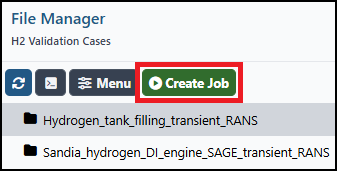
Fill out the job options. If you need help selecting a node type, review our hardware recommendations.
When you are ready to submit the job, click Create Job.
There are also ways to create jobs outside of the CONVERGE Horizon web interface:
Starting in CONVERGE Studio 5, you can upload files and create jobs from CONVERGE Studio.
If you have installed the CLI, you can create a new job with the job:create command.
Check Job Status#
Go to the Jobs page to check the status of a job. You can adjust the filters at the top right to filter the results by job owner, job status, or other criteria. By default, the queue shows only your own jobs from the past week.
View the Job Log#
You can see detailed status information in the job log. On the Jobs page, click on the name of the job to open the Job Details page. Expand the Log section to view the job log.
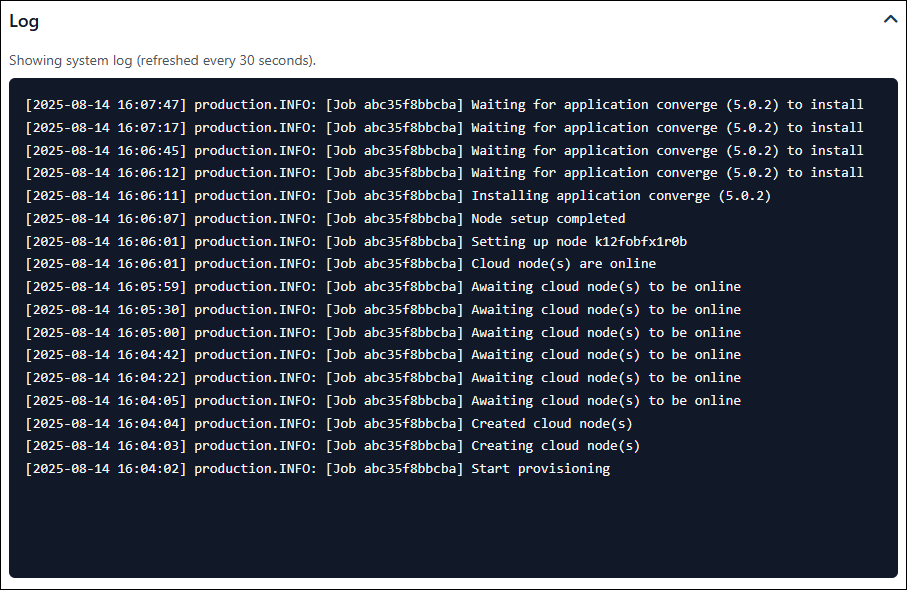
An example system log for a job.#
Depending on job status, the job log can display one of two different logs—the system log or the horizon.log file. The system log, which shows information from the CONVERGE Horizon backend, appears when the status is Pending, Provisioning, Interactive, or Stopping. The horizon.log file, which contains standard output from CONVERGE (i.e., output that would be written to the screen if you ran the simulation locally), appears when the status is Running.
The job log shows only the most recent information from the system log or the horizon.log file. No information is displayed if the job status is Stopped or Failed.
View Job Metrics#
CONVERGE Horizon displays a number of real-time performance metrics to help you monitor jobs while they are running. On the Jobs page, click on the name of a job to open the Job Details page.
In the Application Metrics section, you can monitor up to 5 metrics selected from CONVERGE output files. The wall time from stream0/time.out and the total cell count from stream0/cell_count_ranks.out are selected by default. To add more metrics, you can select from the suggested options or click Add metric to choose any variable from the *.out files written by CONVERGE. To remove a metric, click X in the upper right corner.
For information about the data written to CONVERGE output files, consult the CONVERGE Manual (available on the CONVERGE Hub; login required).
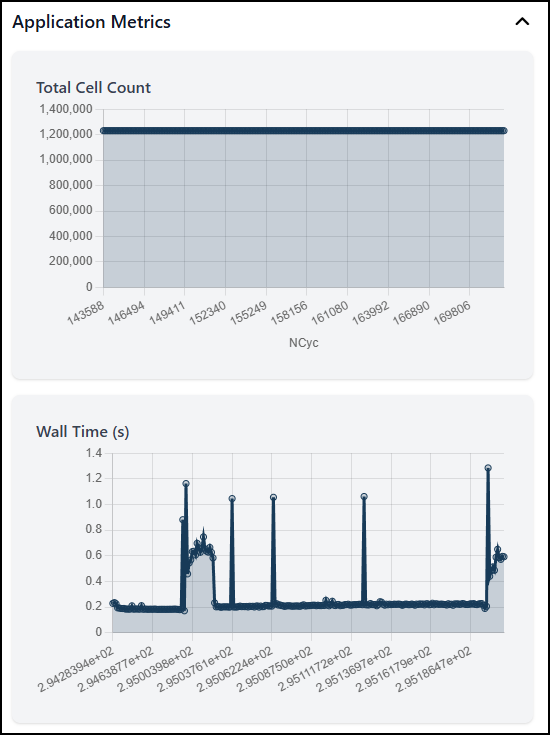
An example of application metrics for a running job.#
In the Node Metrics section, you can view recent data for CPU and memory utilization.
CONVERGE Horizon updates data for the job metrics every 5 minutes (there is no need to refresh the page). Suggestions for application metrics are also updated every 5 minutes based on the job’s current output.
For jobs running on file systems, additional job monitoring tools are available in the File Manager. For jobs using spaces for storage, there is no web interface that provides real-time access to the full set of output files while the job is running. Instead, you must use SSH to log in to the job cluster. After the job has stopped and the output files have been copied to the space, you can download the output files from the space.
Run a Job With UDFs#
If you are running a simulation with user-defined functions (UDFs), you must compile the UDF library on a Linux machine (your own local machine, a cloud file system, or a cloud workstation) and upload the libconverge_udf.so file to the same cloud storage path as your other input files. You cannot use a UDF library compiled on Windows.
There are two options for uploading the libconverge_udf.so file:
Upload libconverge_udf.so to the root Case Directory.
Create a subdirectory in the Case Directory called lib and upload libconverge_udf.so to this subdirectory. When nodes are provisioned for the job, CONVERGE Horizon will add lib to
LD_LIBRARY_PATHso that CONVERGE can find and link the UDF library at runtime.
Once you have uploaded libconverge_udf.so, follow the usual process for creating a job.
Run a Job With ParaView Catalyst#
When you run a simulation using in situ post-processing with ParaView Catalyst, CONVERGE Horizon automatically installs the required software packages on the job cluster and configures the runtime environment for ParaView Catalyst. All you need to do is activate ParaView Catalyst in your case setup and upload the required input files along with the rest of your case. Then, follow the usual process for creating a job. You do not need to specify any custom commands.
CONVERGE offers in situ post-processing with ParaView Catalyst starting in CONVERGE 3.1.3. Case setup details vary by CONVERGE version, so we recommend performing the setup in CONVERGE Studio to make sure your input files are formatted correctly. Run the job with a CONVERGE version that matches your version of CONVERGE Studio.
To learn more about using ParaView Catalyst with CONVERGE, refer to the CONVERGE Studio Manual (available on the CONVERGE Hub or by pressing F1 in CONVERGE Studio).
Run a Job With Optional Coupling#
A coupled simulation (or co-simulation) is one in which the CONVERGE solver and a third-party application advance together in time, exchanging data at each time-step. On CONVERGE Horizon, you can run coupled simulations with GT-SUITE if you have a GT-SUITE license hosted on your own license server.
Before running jobs with optional coupling, complete the setup required to use a self-hosted license for GT-SUITE. Once this setup is done, you can follow the usual process for creating jobs, with a few special considerations:
Be sure to perform the necessary case setup for a coupled simulation and upload all of the required input files to the file system or space. This includes the cosimulation.in file and the input files for GT-SUITE. For more details, refer to the CONVERGE Manual, available on the CONVERGE Hub (login required).
Do not upload a gtlink.prm file. This file is generated automatically by CONVERGE Horizon.
When creating the job, specify optional coupling with GT-SUITE.
Confirm that the GT-SUITE version in cosimulation.in matches the version selected in CONVERGE Horizon.
Specify your GT-SUITE license server before starting the job.
When selecting a node type, be aware that 2 cores will be allocated to GT-SUITE. For example, if you select a virtual machine (VM) with 36 cores, 34 cores will be used for CONVERGE and 2 cores will be used for GT-SUITE.
For jobs run from spaces, expect the Provisioning step to take longer than for a job without coupling (installing GT-SUITE on the cluster increases the build time). For jobs run on file systems, GT-SUITE will be installed on the file system for the first job and then cached for future jobs, so the extra build time will only affect the first job.