
 CONVERGE Horizon
Working With File Systems#
You can access file systems in the CONVERGE Horizon web interface or from the command line. This guide explains how to upload and download data, manage data stored in the cloud, and share files with collaborators.
All team members have the same file system permissions, so the files and folders created by one team member can be modified by other team members.
Open the File Manager#
CONVERGE Horizon includes a built-in File Manager that you can use to access data on a cloud file system. There are two ways to open the File Manager:
On the File Systems page, click the File Manager (
 ) button in the row for the file system you want to access.
On the File Systems page, click on the name of the file system to open the File System Details page. Then, click File Manager in the lower right.
By default, the File Manager is embedded in the CONVERGE Horizon web interface. To open a full-screen version in a separate tab, click the Open in New Tab ( ) button in the upper right. You will be required to log in to the File Manager with your CONVERGE Horizon credentials.
Upload Input Files to a File System#
In the File Manager, click Upload to upload input files for a CONVERGE simulation. In the Upload modal, select the Folder option to upload your entire Case Directory. Once the case has been uploaded, you can run a job.
You can optionally compress your input files into an archive and upload the case as a single archive file instead of uploading the folder. After the archive file has been uploaded, right-click on the file name and select Extract to extract the input files. The File Manager can extract files from archives in .tar.gz, .gz, .zip, .lz4, or .zst format.
If you prefer working at the command line, you can upload your case using SCP or rsync instead. Example commands are provided here.
Warning
When uploading files and folders, do not include the following characters in file names or directory names: & < > " '. Jobs will fail if any input file paths include any of these characters.
Edit Files on a File System#
You can edit a file from the File Manager as follows:
Double-click on a file to open a text editor.
Make your changes in the text editor.
Click Save in the upper right.
Click X in the upper left to close the text editor.
If you prefer working at the command line, you can also SSH to the file system to edit your files.
If you edit an input file for a job that is currently running, your changes can affect the results of the simulation. This is because the file system is mounted to the job cluster, and CONVERGE reads data directly from the storage path provided at the start of the job. Make sure you understand how your changes will affect a running simulation before you edit the input files. Some changes may cause the job to fail.
Share Files on a File System#
You can use the File Manager to share specific files or folders with collaborators who do not have access to the file system. Your collaborators will receive a link from which they can view and download the shared files. You can share this link with anyone, so be sure to send it only to trusted individuals.
In the File Manager, select the files or folders that you want to share (use Shift+Click or Control+Click to select multiple items).
Click Share.
In the Share modal, set the duration over which the files will be shared and a password that will be required to access the files. The link will expire after the duration has elapsed.
Click the “Copy to clipboard” (
 ) button to copy the link to the files.
Send the link and the password to your collaborators.
Download Output Files From a File System#
For jobs that run on a file system, CONVERGE writes output files directly to the job’s storage path (this is different from the behavior for jobs run from spaces). You can view and download output files from the File Manager at any point during or after the simulation.
To download your files from the File Manager, select the file(s) or folder(s) and click Download.
Toggle the “Select multiple” (
 ) button in the upper right to select multiple items with a single click on each item. (By default, you must use Shift+Click or Control+Click to select multiple items.)
When you download multiple files, they are bundled into an archive (such as a tar or zip file) before being transferred to your machine. You will be prompted to select your preferred archive format.
If you prefer working at the command line, you can download files using SCP or rsync instead. Example commands are provided here.
Clean Output From a Folder#
You can remove CONVERGE output files from a folder if you want to start over with a clean case setup. To do so, open the folder in the File Manager and click Clean. You will be prompted to select the file types that will be permanently deleted from the folder and its subfolders.
Customize File Manager Settings#
Click Settings in the lower right to change the language or customize other settings for the File Manager. These settings are used only by the File Manager and do not affect the rest of the CONVERGE Horizon application.
By default, the language is set to English and the other options are unselected. Feature descriptions in this documentation always assume the default behavior.
- Hide dotfiles:
Check this box to hide files with names starting with
.(e.g.,.config). If you select this option, dotfiles will not appear in directory lists, will not appear in search, and will not be included when you download an entire folder as an archive.- Open files and folders on single click:
Check this box to use a single click instead of a double click to open files and folders.
- Redirect to destination after copy/move:
Check this box to have the destination folder opened automatically after you copy or move a file. By default, the file’s original folder remains open after the file is copied or moved.
- Show exact timestamps:
Check this box to display the exact date and time a file was modified (e.g.,
10/06/2026, 9:40 AM) instead of an approximate relative time (e.g.,1 hour ago).- Language:
Select the language you want to use in the File Manager.
Access a File System From the Command Line#
Prerequisites
To use the utilities described below, you must add an SSH key to your account. Click Settings
You can use Secure Shell (SSH) and related utilities to access a CONVERGE Horizon file system from the command line. The SSH command for a file system is listed on the File System Details page under Connection Information. To open this page, go to File Systems and click on the name of the file system.
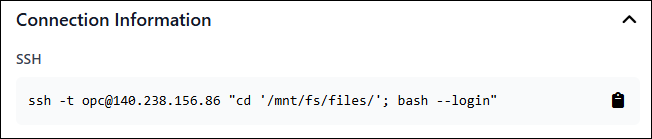
For most organizations, the SSH command contains an IP address. However, some organizations use DNS names (such as filesystem-qstenzjp7j0x.horizon.runcfd.com) instead of IPs. In the examples below, we use x.x.x.x as a placeholder for the IP or DNS name.
When working at the command line, always provide the full cloud storage path starting with /mnt/fs/files/ (this is the File Manager home directory). For example, if the path you see in the File Manager is cases/case1, the correct path for the commands below is /mnt/fs/files/cases/case1.
SSH to a File System#
The SSH command has the general form:
ssh -t [email protected] "cd '/mnt/fs/files/'; bash --login"
If your public SSH key does not have the default file name, add the -i option as in the following example:
ssh -i path/to/public/key -t [email protected] "cd '/mnt/fs/files/'; bash --login"
Transfer Files To or From a File System#
You can upload and download files using the secure copy protocol (SCP) or the remote sync utility (rsync). Example commands are shown below.
SCP is installed by default on most systems. rsync is included by default in most Linux distributions.
# Recursively copy local Case Directory to cloud file system
scp -r /local/path/to/case [email protected]:/mnt/fs/files

# Same as above, but using rsync instead
rsync -r --progress /local/path/to/case [email protected]:/mnt/fs/files

# Recursively copy folder from cloud file system to local Downloads folder
scp -r [email protected]:/mnt/fs/files/path/to/folder /local/path/to/Downloads

# Same as above, but using rsync instead
rsync -r --progress [email protected]:/mnt/fs/files/path/to/folder /local/path/to/Downloads