
 CONVERGE Horizon
Enable Email Notifications
You can opt to receive email notifications for file systems, spaces, jobs, and/or workstations that you own.
By default, email notifications are disabled and you will only see in-system notifications. You can review your in-system notifications at any time by clicking the icon in the upper right corner, as shown below.
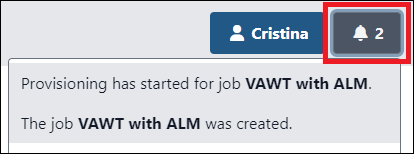
To receive emails for some or all of your notifications, follow these steps:
Go to My Account and expand the Email Notifications section.
Select the events that will trigger email notifications (see event definitions below).
Click Update Notifications.
The events are defined as follows:
- Created:
The resource was created.
- Provisioning:
CONVERGE Horizon started provisioning the resource.
- Running:
The job started running.
- Online:
The status of the resource changed to Online.
- Stuck:
The simulation log has not been updated for over an hour.
- Time Limit:
The job will reach its time limit in two hours.
- Expanded:
The file system was expanded.
- Full:
The file system is almost full.
- Emptied:
The space was emptied.
- Stopped:
The job was stopped.
- Failed:
The job failed.
- Deleted:
The resource was deleted.