
 CONVERGE Horizon
Access a File System From the Command Line
Prerequisites
To use the utilities described below, you must add an SSH key to your account.
You can use Secure Shell (SSH) and related utilities to access a CONVERGE Horizon file system from the command line. The SSH command for a file system is listed on the File System Details page under Connection Information. To open this page, go to File Systems and click on the name of the file system.
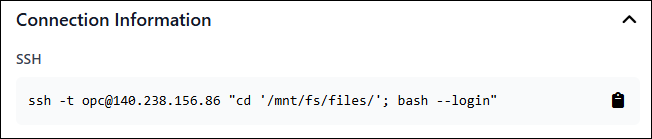
Example commands for common scenarios are shown below. Note the following:
These examples use
x.x.x.xas a placeholder for the IP address of the virtual machine on which the file system resides. Replacex.x.x.xwith the IP address from the File System Details page.When working at the command line, always provide the full cloud storage path starting with
/mnt/fs/files/(this is the File Manager home directory). For example, if the path you see in the File Manager iscases/case1, the correct path for the commands below is/mnt/fs/files/cases/case1.
SSH to a File System
The SSH command has the general form:
ssh -t [email protected] "cd '/mnt/fs/files/'; bash --login"
If your public SSH key does not have the default file name, add the -i option as in the following example:
ssh -i path/to/public/key -t [email protected] "cd '/mnt/fs/files/'; bash --login"
Transfer Files To or From a File System
You can upload and download files using the secure copy protocol (SCP) or the remote sync utility (rsync). Example commands are shown below.
SCP is installed by default on most systems. rsync is included by default in most Linux distributions.
# Recursively copy local Case Directory to cloud file system
scp -r /local/path/to/case [email protected]:/mnt/fs/files

# Same as above, but using rsync instead
rsync -r --progress /local/path/to/case [email protected]:/mnt/fs/files

# Recursively copy folder from cloud file system to local Downloads folder
scp -r [email protected]:/mnt/fs/files/path/to/folder /local/path/to/Downloads

# Same as above, but using rsync instead
rsync -r --progress [email protected]:/mnt/fs/files/path/to/folder /local/path/to/Downloads