
 CONVERGE Horizon
Run a Job
Before you can run a job, you must upload the input files to the cloud using your preferred storage option. The job will run in the data center where the input files are stored. You can upload your case to an existing file system or space as described in Upload Input Files to a File System or Upload Input Files to a Space.
Once the case is uploaded, you can create the job in one of three ways, as detailed below.
Create Job in CONVERGE Horizon
In the CONVERGE Horizon web interface, you can create a job from the file system or space containing the input files:
Open the Create Job form.
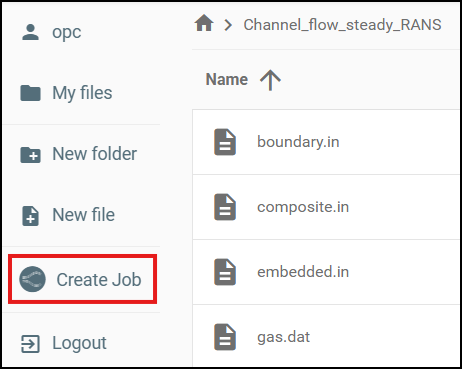
If the input files are on a file system, log in to the File Manager and open the directory for your case. Click Create Job on the left.
If the input files are in a space, go to Spaces and click on the name of the space. Select the directory for your case and click Create Job.
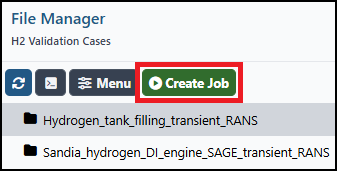
Fill out the job options. When you are ready to submit the job, click Create Job.
If you need help selecting a node type, review our hardware recommendations.
Create Job in CONVERGE Studio
Starting in CONVERGE Studio 5, you can use the CONVERGE Horizon button to upload files and create jobs from CONVERGE Studio. To get started, add your CONVERGE Horizon account settings to CONVERGE Studio in Edit > Preferences > CONVERGE Horizon. Within CONVERGE Studio, you can view documentation by pressing F1.
Create Job With CLI
If you have installed the CLI, you can create a new job with the job:create command.