
 CONVERGE Horizon
SSH to Job Cluster
Prerequisites
To use SSH with CONVERGE Horizon, you must add an SSH key to your account.
You can use Secure Shell (SSH) to log in to the head node of the cluster on which a job is running. This gives you real-time access to the job’s file system, where you can edit input files and interact with the full set of output files while the simulation runs.
On the Jobs page, click on the job name to open the Job Details page. Expand the Connection Information section and copy the SSH command:
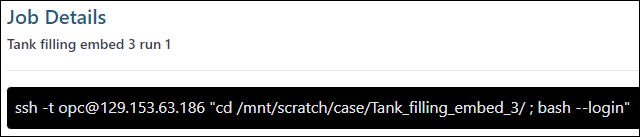
This command appears only when the job status is Running. Paste the command into a terminal to SSH to the head node of the cluster.
If your public SSH key does not have the default file name, add the -i option as in the following example (replace x.x.x.x with the IP address):
ssh -i path/to/public/key -t [email protected] "cd '/mnt/fs/files/path/to/case/' ; bash --login"
To download files from the cluster to your local file system, use SCP instead of SSH, with the same IP address and directory path as the SSH command. For example, if the SSH command has the format shown above, the following SCP command will recursively copy the contents of the outputs_original directory on the cluster to a local Downloads folder:
scp -r [email protected]:/mnt/fs/files/path/to/case/outputs_original /local/path/to/Downloads
If you are using a space for storage, logging in to the head node (as described above) is the only way to access the job’s file system. If you are using a file system for storage, that file system is mounted to the job cluster while the job is running, and logging in to the head node is one way to access it. The other way is to log in to the virtual machine where the file system resides, as described in Access a File System From a Browser and Access a File System From the Command Line.