
 CONVERGE Horizon
Monitor a File System
After creating a file system, you can monitor the file system status and performance as described below.
For system-wide status information, visit status.convergecfd.com/status/horizon.
Check File System Status
Go to File Systems to check the status of a file system. The statuses are defined as follows:
- Pending:
CONVERGE Horizon has created the file system and is requesting a node from the cloud provider.
- Provisioning:
CONVERGE Horizon is provisioning the node allocated by the cloud provider. This includes software installation and configuration.
- Online:
The file system is available for use.
- Expanding:
CONVERGE Horizon is increasing the size of the file system.
- Hibernating:
The file system is hibernating.
- Deleting:
CONVERGE Horizon is deleting the file system.
- Deleted:
The file system has been deleted.
View the File System Log
Each file system has a system log showing detailed information from the CONVERGE Horizon back end.
On the File Systems page, click on the name of the file system to open the File System Details page. Expand the Log section to view the system log. Only the most recent information from the system log is displayed.
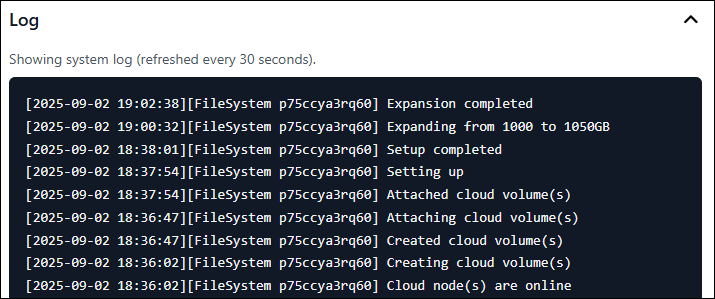
An example system log for a file system.
View File System Metrics
You can view real-time metrics to keep tabs on file system performance. On the File Systems page, click on the name of a file system to open the File System Details page. Expand the Node Metrics section to see recent data for CPU utilization, memory utilization, and disk IOPs.